
Most photo apps are built around a feed. You post, a number goes up or it doesn't, and the photo slides down the timeline in a day. That's fine if you want an audience, but a lot of people just want somewhere to keep the good shots where they can find them again, and maybe send the link to a friend. That's what Photos on Logfolio is for.
What's different from a social app
There's no feed, no likes, no followers, and no comments. Your photos sit on your own page at logfolio.co/yourname as a grid, sorted the way you pick, and nobody gets a notification when you add one. If people want to see them, they open your page.
The page isn't only photos, either. Photos is one section next to the books, films, shows, games, and albums you log, so the trip photos can sit right under the books you read on that trip.
Upload a few at a time
Photos is part of Pro. Open Photos in the sidebar, press Add, and choose one image or a whole batch, or drag them straight onto the box. JPEG, PNG, WebP, and AVIF all work, up to 15 MB each, and you can keep up to 500 images in total. The same panel has the column switch for your page.
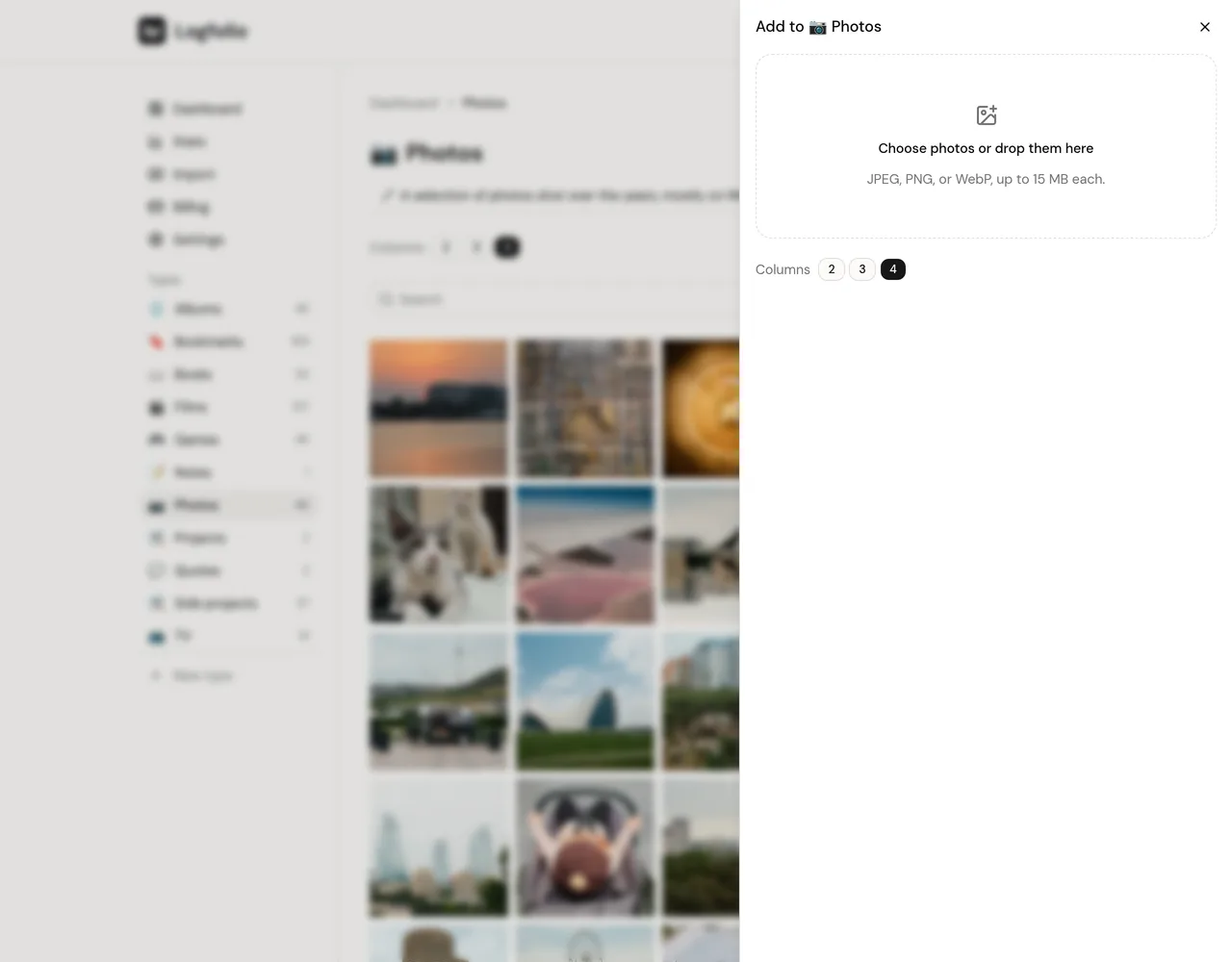
When a photo comes in, Logfolio turns it the right way up and saves it in a few sizes, with the largest at 1280 pixels on the long side. That's sharp on a laptop or phone screen, but it isn't an archive. The original file isn't kept, so your camera roll or your backup is still where the full-size copy lives.
Your location stays with you
Phone photos carry hidden data, and it often includes the exact spot where you took the picture. Logfolio removes all of it when you upload, so nobody can pull your home address out of a photo of your cat.
That also means the camera and place aren't read from the file. If you want them on the page, there are Place and Camera fields you can fill in yourself, and you get to decide how exact to be. "Lisbon" is enough.
Captions dates and tags
Each photo is an entry like anything else you log, so clicking one opens a panel with everything you can add. There's a caption and a place up top, and More details opens the date you took it, the camera, tags, and a note. The date doesn't need to be exact, since a year or a month is enough, and every field can stay blank if you'd rather just post the picture.
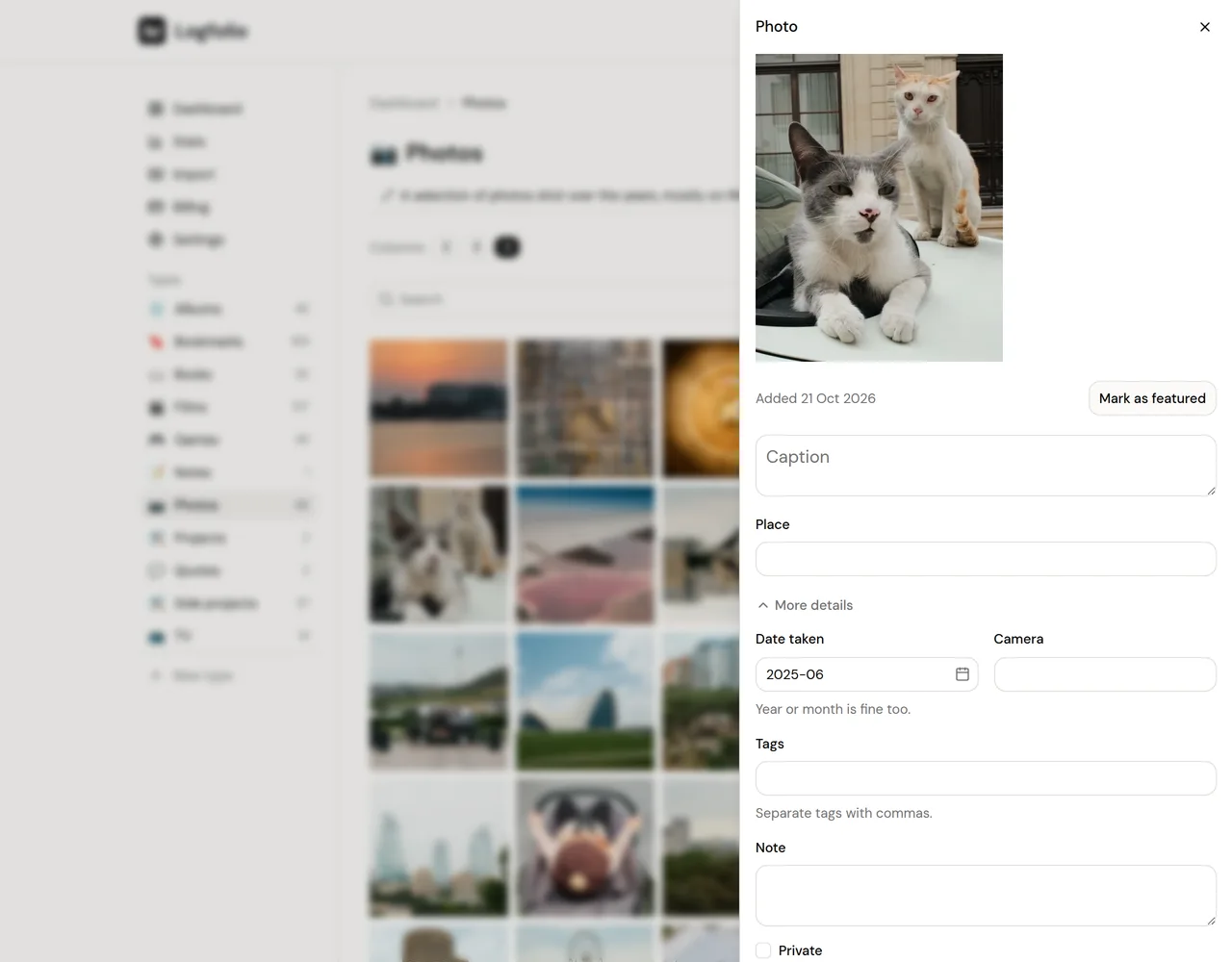
Changes save as you go, so there's no save button. Tags work as filters on your page, so a tag like travel or film camera pulls those photos together.
How it looks on your page
You can see how it works on my Photos page. Photos show as square tiles. Phones get two across, and on wider screens you pick two, three, or four columns. Clicking a photo opens it full screen, and you move through the rest with the arrows or the arrow keys.
Every photo also has its own link, so you can send someone one picture instead of the whole page. You can feature up to five photos so they show first, and write a line under the section, like "Mostly walks home from work."
Private photos
Any photo can be marked private. It drops off your public page, and only you can open it, even if someone has the direct link. You can also make your whole profile private and use Photos as a journal nobody else sees.
Photos on your own site
If you have a blog or a portfolio, the profile card can show a row of your latest photos there, next to whatever else you pick. It updates when you post a new one.
If you stop paying
Nothing gets deleted. Your photos go read-only and leave your public page, and they come back the moment you upgrade again.