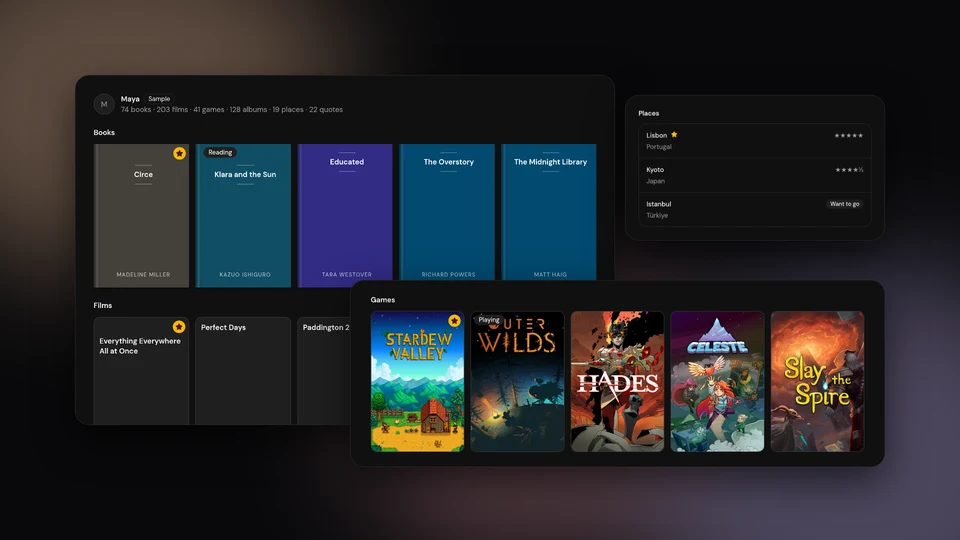
Logfolio is one page for everything you read, watch, play, and collect. Books, films, shows, games, and albums sit side by side, along with anything else you keep track of, at logfolio.co/yourname.
Most people spread this across several apps: one for books, another for films, a launcher full of games, and a note on their phone for everything else. Logfolio keeps all of it in one log, and turns that log into a page you can share.
Here's how it works, from your first entry to your year in review.
What you can log
- Books, films, TV, games, and albums. Ready from the start, on every plan.
- Quotes. Lines worth keeping, with who said them and where.
- Bookmarks. Articles and pages you want to read, or already have.
- Your own types. Side projects, recipes, places, tools, coffee: make a type for anything, with the fields you choose.
- Notes. Write as much or as little as you like. Notes are private unless you publish one.
Quotes, bookmarks, and your own types are part of Pro.
Your first ten minutes
- Sign up with Google or your email. With email, we send you a link to sign in, so there's no password to remember.
- Pick your username. It becomes your address:
logfolio.co/yourname. - Open your Dashboard. Every type has a card here, with what you logged most recently underneath. Types you haven't used yet stay quiet until you add something.
- Add three things you finished lately. A book, a film, a game. It's enough to see how your page looks.
- Open your page from the menu under your photo, and look at it the way a friend would.
Adding an entry
Open a type in the sidebar and press Add. The form is built to be quick:
- The title comes first, big, so you can just start typing.
- Tap a status. Each type names its statuses in its own words: Want to read, Reading, and Read for books; Watchlist, Watching, and Watched for films. Dropped is there for the ones you gave up on.
- Tap the stars for a rating, from half a star to five. Skip it if you don't have an opinion yet.
- More details holds everything else: the year, the date, tags, and any fields of your own.
The date can be a full day, just a month, or just a year. If you only remember that you read something in 2019, that's a real answer, and it still lands in the right year.
What goes in an entry
Add more only when you want to:
- A rating, from half a star to five.
- A date, as exact as you remember it.
- Tags, like
book-cluborrewatch. On your page they turn into filters. - A note for yourself. It never shows on your page.
When you open an entry again, your edits save as you type.
Mark up to five entries in each type as featured. They lead that shelf, so the first thing people see is what you'd recommend.
Your log and your page
Logfolio has two sides:
- Your log is where you work. The Dashboard, each type's list, and your notes. Only you see it.
- Your page is what everyone else sees. It shows titles, statuses, ratings, dates, tags, and any fields you chose to make public. Your notes on entries never appear there.
Bring your history over
You don't have to start from zero. Logfolio reads the files other services already let you download:
- Books: Goodreads and StoryGraph.
- Films and TV: Letterboxd, IMDb, and Netflix.
- Albums: Discogs.
- With Pro: Kindle highlights as quotes, and Pocket saves or a browser bookmarks file as bookmarks.
Open Import from the menu under your photo, choose the file, and press Import. Ratings, dates, and shelves or tags come along where the file has them.
With Pro you can also connect Steam for your games and GitHub for your projects. You pick what comes in; nothing is added without you ticking it.
Anything already in your log is skipped, so importing the same file twice never makes duplicates. Step-by-step help for each service is in the guide to moving your history.
Notes
Open Notes in the sidebar to write. A note can be a line or a page. You get headings, lists, quotes, and links, and it saves as you type.
Notes start private. With Pro, flip the Public switch on a note and it appears on your page, with its own link you can send. Turn it off again and it's private once more.
Free includes 20 notes. Pro has no limit.
Make your own types
Not everything is a book or a film. With Pro, choose New type in the sidebar. You can start from a template, like Projects, Recipes, Places, or Tools, or start blank.
- Pick a look: a List for things that are mostly text, or a Grid of tiles.
- Choose what to track: a status with two steps you name yourself, a rating, a date, and a year. Each one is optional.
- Add up to 12 fields of your own: text, long text, numbers, ratings, dates, a pick-one list, tags, or links.
- Decide what's public. New fields start hidden, so nothing reaches your page until you say so. You can also hide a field's label and show just the value.
You can make up to 50 types. The side projects guide walks through one from start to finish.
Your public page
Your page lives at logfolio.co/yourname, with a section for each type. Books show as a shelf, films and games as posters, albums as square tiles, quotes as cards, and bookmarks as a list. Your own types can be a list or a grid. Each type also has its own page, like logfolio.co/yourname/books, where visitors can filter by status or tag.
Click any entry and it opens right there, with its own link you can send. Links shared on social media and in chats get a preview image.
With Pro you can:
- Put your sections in any order, or switch some off, under Settings, then Profile sections.
- Keep single entries private. They stay in your log and never show on your page.
- Make your whole page private.
- Publish notes to your page.
Share it
Your page, and every entry on it, has buttons to copy the link or share it to X, LinkedIn, or WhatsApp. The preview image shows the title, so a shared link looks right in a group chat.
Stats and your year in review
With Pro, Stats shows what you finished each year: totals for each type, your average rating, a month-by-month chart, and your top-rated picks. Each year gets its own page you can share. Here's how to make the most of it.
Your data stays yours
- Export everything, on any plan. In Settings, choose Download export. You get a ZIP of spreadsheets.
- Delete your account and everything goes with it.
- Stop paying and nothing is deleted. Pro types become read-only and leave your page, private entries stay private, and it all comes back if you upgrade again.
If you see a page that breaks the rules, every public page has a Report link at the bottom.
Free and Pro
Free includes books, films, TV, games, and albums with 20 entries each, imports up to that limit, your public page with featured picks, 20 private notes, and export.
Pro removes the limits and adds quotes, bookmarks, your own types, Steam and GitHub, stats and year in review, private entries and a private page, published notes, and section order. It's $3.99 a month or $29.99 a year. Not a subscription person? Pay once and keep Pro forever: $99 at launch, then $149. See Pricing for the full list.
Common questions
Does it work on my phone? Yes. Logfolio runs in your browser, and adding an entry opens as a sheet from the bottom of the screen, made for one thumb.
Can I leave? Any time. Download your export first if you want to keep a copy, then delete your account from Settings.
Get started
- Sign up with Google or your email, and pick your username.
- Import a file, or add a few things you finished recently.
- Mark a few as featured and share your page.
Want ideas first? Browse the use cases to see what other pages can look like.